



Wrap it. Snap it. Rewards!
Show off your finished wrap. Share a photo and get rewarded!
Custom Premium Print Vinyl Wrap
Upload Artwork
Select Media Option
Calculate Media Usage
This finished size requires paneling. A fixed 1″ overlap is used. The calculator automatically selects a panel orientation and media width, which can be overridden.
File Instructions
Order Summary
$0.00
Gallery
Gallery
Product Details
Product Details
Create professional vehicle wraps, fleet graphics, and custom printed designs with Custom Premium Wrap Vinyl, professionally printed by Printara. Choose between two industry-leading printable cast vinyl films: Avery Dennison MPI 1105 Easy Apply RS and 3M IJ180CV3 Controltac with Comply v3.
Both premium 2 mil cast vinyl films are designed for long-term graphic applications, offering excellent conformability, air-release technology, repositionability, and professional print performance. Whether you're creating a full vehicle wrap, commercial fleet graphics, or custom automotive branding, both materials provide dependable options for demanding installations.
Choose Your Premium Printable Vinyl
Printara offers two professional-grade materials for custom printing. Both films are designed for vehicle wrapping, but feature different adhesive technologies and installation characteristics.
Avery Dennison MPI 1105 Easy Apply RS
Avery Dennison MPI 1105 is a premium gloss white supercast vinyl designed for complex vehicle wraps, fleet branding, and long-term commercial graphics.
Its Easy Apply RS Technology combines air-release channels with slideability and repositionability, allowing installers to align large graphics before applying firm pressure. The film's highly conformable construction accommodates compound curves, rivets, corrugations, and recessed areas.
- Premium 2 mil gloss white supercast vinyl.
- Easy Apply RS air-release adhesive technology.
- Slideable and repositionable during installation.
- Excellent conformability around complex contours.
- Long-term removable acrylic adhesive.
- Ideal for full vehicle wraps and commercial fleets.
View Avery Dennison MPI 1105 Media Specifications →
3M IJ180CV3 Controltac with Comply v3
3M IJ180CV3 is a premium 2 mil cast printable vinyl designed for professional vehicle wraps, fleet graphics, and other approved long-term applications.
Featuring 3M Controltac and Comply v3 Adhesive Technology, the film provides slideability, repositionability, and air-release channels that help minimize trapped air during installation. Its flexible construction conforms to compound curves, rivets, corrugations, and complex vehicle surfaces.
- Premium 2 mil gloss white cast vinyl.
- Controltac pressure-activated adhesive.
- Comply v3 micro air-release technology.
- Slideable and repositionable graphic film.
- Excellent conformability around vehicle contours.
- Ideal for vehicle wraps, commercial fleets, and signage.
View 3M IJ180CV3 Media Specifications →
Avery Dennison MPI 1105 vs. 3M IJ180CV3
Both materials are excellent choices for professional custom printed vehicle graphics. The best option depends on your preferred manufacturer, installation methods, and project requirements.
| Feature | Avery MPI 1105 | 3M IJ180CV3 |
|---|---|---|
| Film Type | Supercast PVC | Cast PVC |
| Thickness | 2 Mil | 2 Mil |
| Film Color | Opaque White | Opaque White |
| Base Finish | Gloss | Gloss |
| Adhesive | Easy Apply RS | Controltac |
| Air Release | Easy Apply | Comply v3 |
| Repositionable | Yes | Yes |
| Complex Curves | Yes | Yes |
| Application | Dry | Dry |
Both films are designed for professional installation. Differences in adhesive feel, initial tack, conformability, removability, and warranty eligibility should be evaluated using the manufacturer's current product specifications.
What Can Custom Premium Wrap Vinyl Be Used For?
Both Avery Dennison MPI 1105 and 3M IJ180CV3 are designed for professional custom printed graphics on compatible vehicle and commercial surfaces.
- Full Vehicle Wraps : Create custom printed graphics for cars, trucks, vans, and commercial vehicles. Both films are designed to conform to complex vehicle curves and contours.
- Fleet Graphics : Produce consistent branding for delivery vans, service trucks, company vehicles, trailers, and commercial fleets.
- Partial Vehicle Wraps : Add company logos, promotional graphics, decorative accents, and custom designs to selected vehicle panels.
- Wall Wraps : Create branded interior graphics and decorative displays on compatible smooth wall surfaces. Verify film and substrate compatibility before installation.
- Commercial Signs & Displays: Produce custom promotional graphics, branded signage, and corporate identity applications.
Professional Custom Printing by Printara
Printara provides professional large-format printing for wrap shops, businesses, graphic designers, sign companies, and independent installers. Upload your artwork, logos, company branding, or custom designs and have them printed on your choice of Avery Dennison MPI 1105 or 3M IJ180CV3.
Choose from available printing options, including standard 6-color printing and 11-color Ultra Sharp HD Printing for projects requiring enhanced image detail, rich colors, and smooth gradients.
Want sharper details and more vibrant prints? Learn more about our 11-Color Ultra Sharp HD Printing technology and find the right printing option for your project.
Lamination & Finish Options
Customize the appearance and protection of your premium printed vinyl with Printara's available lamination options. Choose the finish that best matches your project and desired appearance.
- Gloss: High-shine finish that enhances color depth and vibrancy.
- Satin: Smooth, low-sheen appearance with softer reflections.
- Matte: Non-gloss finish that reduces glare and creates an understated look.
- Avery Gloss Clear Sparkle: Specialty gloss finish with a subtle sparkle effect.
- Gloss Plus Protection Film: Glossy enhanced-protection option for printed graphics.
- Satin Plus Protection Film: Satin enhanced-protection option with softer surface reflections.
Finish availability may depend on your selected film and product configuration. Laminate selection can affect conformability, durability, and manufacturer warranty eligibility.
Printing & File Preparation Guides
Need help preparing your artwork or understanding how your custom print is calculated? Scroll down to our Guides section below for instructions on:
- How to set up your print file for production.
- How to create contour cut lines for custom-cut graphics.
- How square footage is calculated for printing and pricing.
Estimating a project? Use our Printara Project Cost Calculator to estimate material requirements and costs.
Frequently Asked Questions
Which is better: Avery MPI 1105 or 3M IJ180CV3?
Both are premium cast vinyl films designed for professional vehicle wrapping. Avery MPI 1105 uses Easy Apply RS technology, while 3M IJ180CV3 uses Controltac and Comply v3. Both offer repositionability, air release, and excellent conformability. The best choice depends on your preferred material, installation methods, and project requirements.
Can both films be used for full vehicle wraps?
Yes. Both Avery Dennison MPI 1105 and 3M IJ180CV3 are designed for full vehicle wraps, partial wraps, and fleet graphics. Their cast construction allows installation on approved compound curves, rivets, and corrugated surfaces.
How long does a custom printed vehicle wrap last?
Durability depends on the selected film, laminate, printing process, installation, environmental exposure, and maintenance. Both materials are designed for long-term applications, but manufacturer performance ratings vary by graphic construction. Learn more in our Vehicle Wrap Durability Guide .
How much vinyl do I need for a vehicle wrap?
Material requirements depend on vehicle size, coverage area, panel overlap, and installation needs. Review our Vehicle Wrap Material Guide or learn more about pricing in our Full Vehicle Wrap Cost Guide .
Manufacturer Resources
For additional technical information, installation requirements, and manufacturer recommendations, review the official resources:
Film performance, removability, laminate compatibility, and warranty eligibility depend on the selected material, printing process, installation conditions, and manufacturer guidelines. Always review current technical documentation before installation.
Wholesale Pricing Available
Wholesale Pricing Available
For print shops and installers
Wholesale pricing for your next big project
Order custom prints and other Printara products at wholesale pricing. If you are not yet a wholesale customer, apply below to get started.
Apply for wholesaleCustom print discounts
Your discount is based on the total square footage of custom prints in your order. The highest tier reached applies.
| Custom print order size | Discount |
|---|---|
| 100–299 sq ft | 3% off |
| 300–499 sq ft | 5% off |
| 500–999 sq ft | 7% off |
| 1,000–1,499 sq ft | 9% off |
| 1,500 sq ft or more | 12% off |
10% off other products
Wholesale customers receive 10% off all other products. Services, including graphic design and installation, are excluded.
Ready to apply?
Submit the wholesale application to request access to wholesale pricing.
Start your wholesale application
California P65 Warning
California P65 Warning
Guides
How to set up your print file
How to set up your print file
File size and artwork dimensions
- Maximum file size: 1 GB.
- Artwork width: Make your artwork at least 0.5″ narrower than the media you select. For example, artwork printed on 60″ media should be no wider than 59.5″.
- Artwork size: Set up your file at the size you want it printed whenever possible. Smaller-scale files are accepted too. If you send a smaller file, tell us the final print size and scale in your order comments.
- Raster image resolution: Make sure your image has enough resolution for its final print size. Enlarging a low-resolution image can make it look blurry or pixelated.
Color
For standard artwork: We recommend sending RGB artwork with the sRGB IEC61966-2.1 color profile embedded. This gives our print software a consistent reference when converting colors for the selected printer and material.
For artwork using Printara Colors: Use the LAB values shown for the color. In Illustrator, create a LAB-defined spot-color swatch and keep it as a spot color in your vector file and production PDF. Preserving the spot-color definition is the preferred way to carry the Printara color target into production.
Prepare your artwork
- Images: Use an image resolution that suits the final print size. Low-resolution images may look blurry or pixelated.
- Fonts and placed images: In vector files, convert fonts to outlines, curves, or paths. Embed any images placed in your file.
- Artboard: Crop the artboard closely around your full design. Any blank space inside the artboard may be included in the printed output.
Accepted file types
We accept PDF, PSD/PSB, TIFF, JPEG, PNG, AI, EPS, and SVG files. To preserve Printara LAB spot colors, submit vector artwork or a PDF with spot colors retained. For raster artwork, submit a Lab-mode PSD, PSB, or TIFF.
Before you submit
Please send files that are ready to print. If your file is smaller than the intended print size, include the final size and scale in your order comments.
Printara may decline files that do not meet these guidelines. We do not review or correct every submitted file, so please check your artwork before sending it.
Need help with your artwork?
Our design team can help prepare or create your artwork. Submit a custom graphic design request.
How to set up contour cut lines
How to set up contour cut lines
- File should be supplied in AI, EPS, SVG, or PDF format with vector contour lines.
-
IMPORTANT: Contour lines must be assigned as a Spot Color named 'CutContour'.
To assign a spot color using Adobe Illustrator:
- Open the Swatches Palette. If the Swatches Palette is not readily visible, you may need to open it by selecting Swatches from the Windows menu.
- Click the 3 horizontal lines in the upper right corner of the Palette, and select New Swatch. This opens the New Swatch dialog.
- Enter CutContour as the name of the new swatch. This needs to be spelled exactly as shown here.
- Select Spot Color from the Color Type drop-down menu, and use the slider bars to create a color. The color is not important since it will not be printed.
- Click OK to close the dialogs.
- Select your cut paths and assign your new swatch color to those paths.


Note: You may use any vector-based drawing program you want. These instructions are specific to Adobe Illustrator. Most drawing programs will follow a similar process. If you have trouble, see the Help Files in your drawing program.
- Contour lines and print image must be supplied in the same file.
- Contour files must be at least 2" less than width of print media.
- Opacity of CutContour lines MUST be at 100%.
- DO NOT hide the CutContour layer or turn off the option to print.
Taking these steps allows us to seamlessly assign your CutContour lines. If followed correctly, the CutContour lines will NOT print. Failure to follow guidelines may result in delayed processing time.
PNG file types with transparent backgrounds are acceptable, but not recommended. Please be aware that PNG files work in a RGB colorspace, and WILL be converted to CMYK when sent to print. We are not responsible for any inaccuracy or color shift that occurs as a result of the conversion.
How square footage is calculated
How square footage is calculated
How Print Square Footage Is Calculated
Our products are priced by the amount of print media required to produce your project. Because your artwork is printed from a roll, the square footage used may be different from the finished square footage of your graphic.
Square Footage Is Based on the Media Used
Your print is produced from a fixed-width roll of media. This means your order is calculated using the amount of media required to produce the print — not just the finished area of the graphic itself.
36″ × 72″ Graphic Example
A 36″ wide graphic is produced on 48″ wide media. Even though the finished graphic is only 36″ wide, the full 48″ width of media is used for the 72″ print length.
Graphic
Projects That Require Panels
If your project is too wide to print in one piece, the calculator can divide it into overlapping panels.
Panels include a fixed 1″ overlap. The calculator determines the media width, orientation, number of panels, and total material required.
Already Know Your Square Footage?
Use the Square Footage tab instead of entering finished dimensions.
Enter the square footage you need and select the desired media width. The calculator will show the approximate length of material that square footage represents.
Frequently Asked Questions
Why is my calculated square footage larger than my graphic?
Do I need to select the correct media width myself?
Can my artwork be rotated to use less material?
How much smaller should my artwork be than the media?
What happens if my artwork cannot fit on one piece of media?
No Manual Math Required
Enter your finished dimensions on the product page and the calculator will determine the media required for your print.
Couldn’t be happier with how this Turbo sticker turned out. Super easy to apply, laid down clean, and the quality is solid. It’s been out in the sun and weather and still looks great with no peeling or fading. Definitely adds some personality and gets attention.

Couldn’t be happier with how this Turbo sticker turned out. Super easy to apply, laid down clean, and the quality is solid. It’s been out in the sun and weather and still looks great with no peeling or fading. Definitely adds some personality and gets attention.

Great wrap. Looking forward to the next car going together for the track.

I’ve been using Printara for all my prints for roughly 3+ years. Great company & customer service!

I needed some custom vinyl for a personal project and Printara got back to me and was able to fulfill my project with ease. Working with them to get the design, scaling, and size of the print was an ease and they chose the perfect wrap for someone who’s never done any wrapping previously.

N/A

Degler Waste Services vac truck. New way to re-brand our equipment and stand out. A lot of complements on the chosen camo color and design size.

My first purchase from Printara was successful
Fast Shipping
Good Tracking Information
Excellent after sale communication
Superior attitude towards clients/customer
Totally Friendly
Rating- 1 -10 My score 9.5
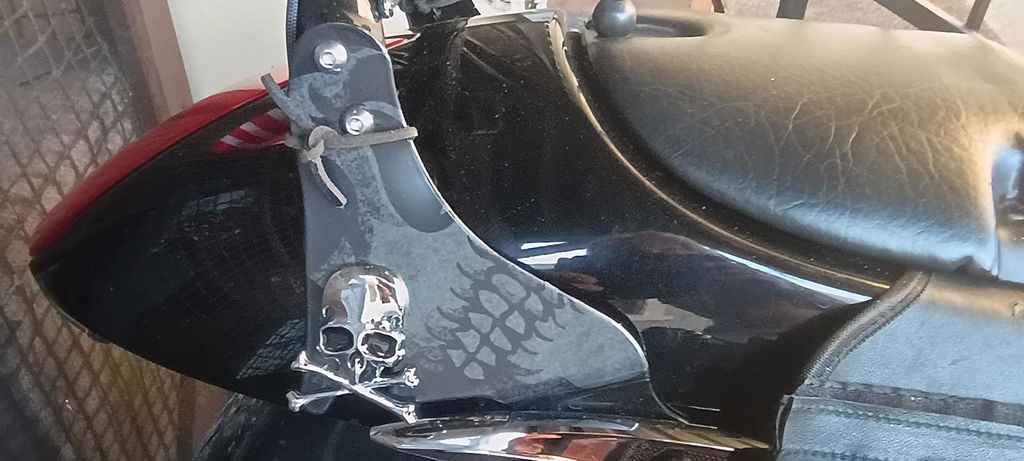
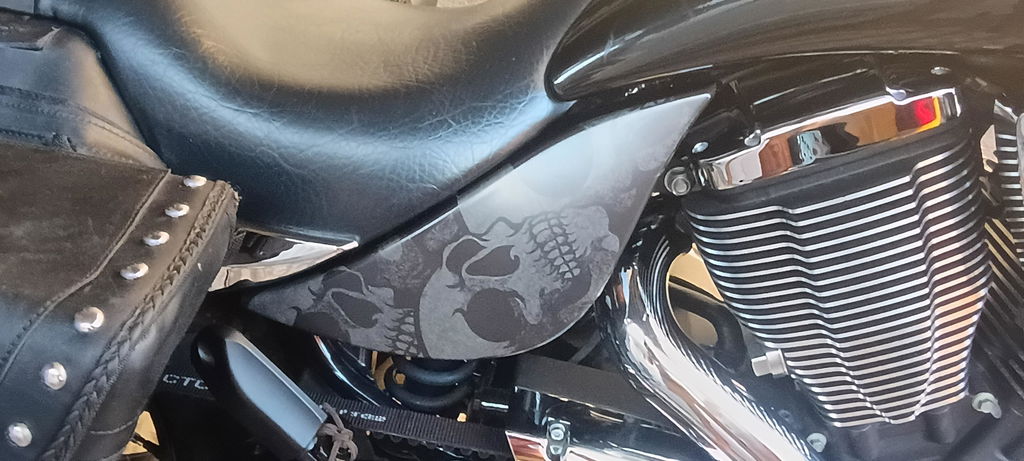
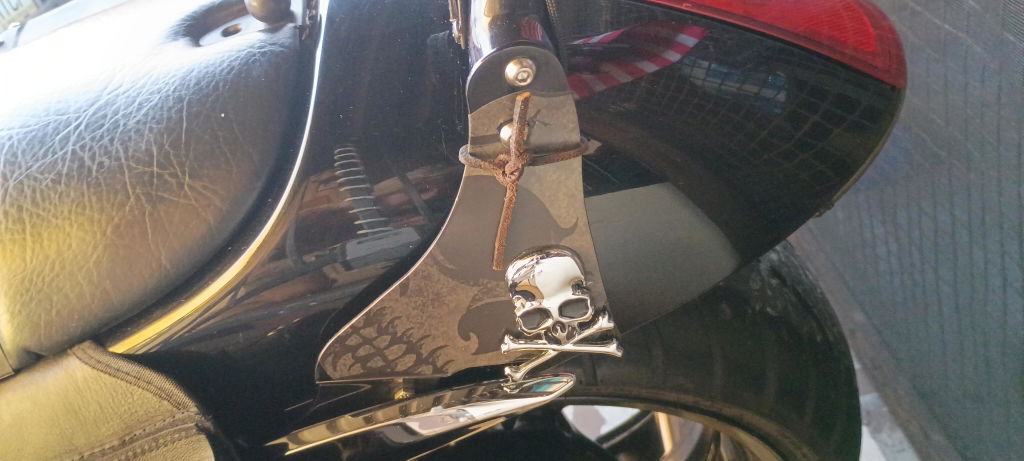
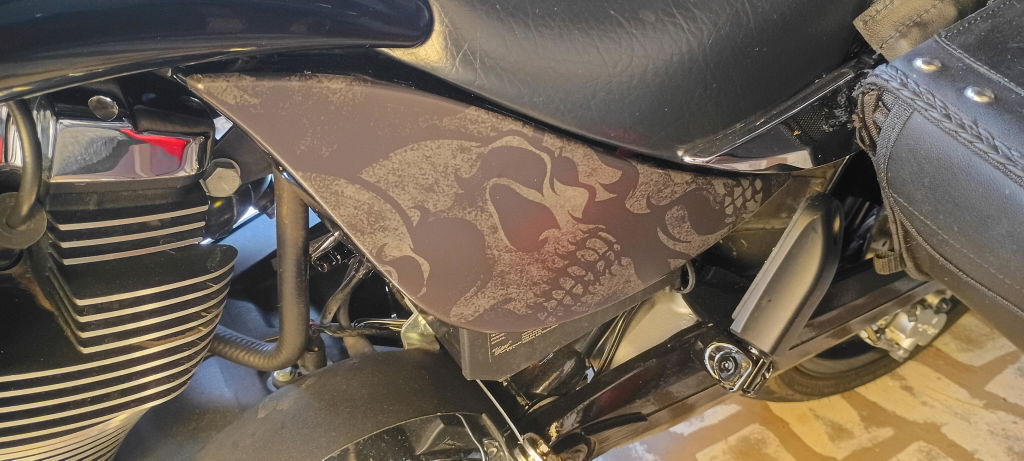
Dealing with Printara was an absolute pleasure from start to finish! They respond immediately and the design was on point! They wanted all the correct measurements and knew what to ask. End result was phenomenal. We already have two other projects in progress with them.

I wanted a Mod Top from the 60s! Printara delivered, love my top. I have had this wrap for 5 years and it looks brand new!

Dealing with Printara was an absolute pleasure from start to finish! They respond immediately and the design was on point! They wanted all the correct measurements and knew what to ask. End result was phenomenal. We already have two other projects in progress with them.

I wanted a Mod Top from the 60s! Printara delivered, love my top. I have had this wrap for 5 years and it looks brand new!

N/A

I had the ability to put quite amazin cartoon girl faces on my shotgun

I recommend to anyone who is seriously interested!

I recommend this product to anyone who is seriously interested!

Design team was easy to work with and fast to resolve a problem that happened on our end.

Overall the product/material was great. The vinyl edge came damaged. The wrap team at RESPEC did a great job with some additional work the were able to make all work out.

Would recommend to anyone who has decided to wrap anything!!!

Thanks guys for making the design and printing process easy

Best printed wrap to install!

N/A

N/A
